
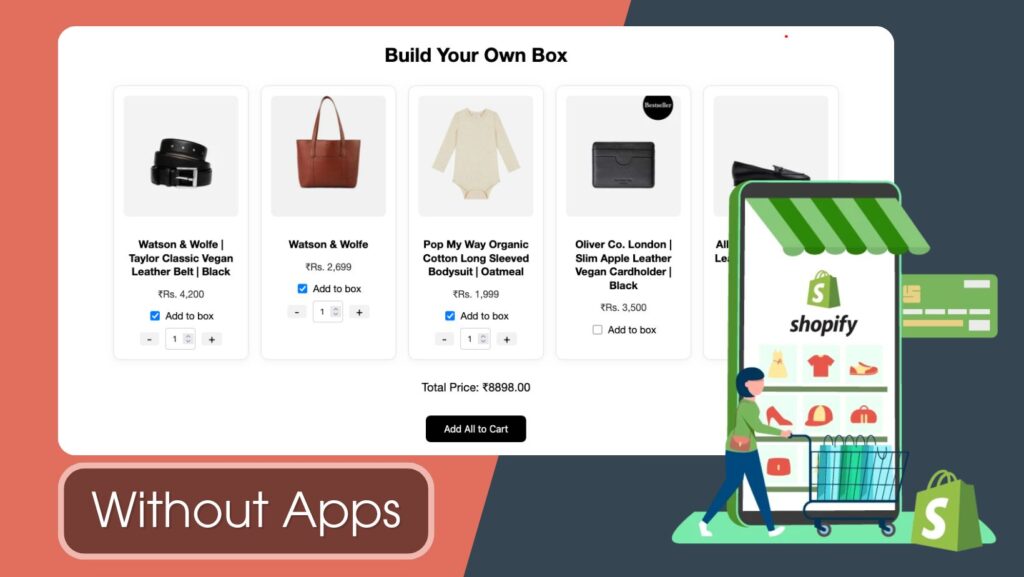
If you run a Shopify store that sells snacks, gifts, skincare, or subscription boxes, you’ve probably wanted to let your customers build their own bundle.
But here’s the problem:
Shopify doesn’t offer this feature natively, and most apps that do it come with monthly fees and limited customization.
In this tutorial, I’ll show you how to create a fully custom “Build Your Own Box” feature in Shopify without using any third-party apps. We’ll use Liquid, JavaScript, and a simple collection.
Take your online store to the next level with a skilled Shopify expert.
Whether you’re starting from scratch or need improvements on your existing store, I provide custom solutions to optimize performance, enhance user experience, and boost sales. With in-depth knowledge of Shopify, I specialize in creating seamless, responsive, and user-friendly e-commerce websites.
What is the “Build Your Own Box” Feature?
It allows customers to:
- Select multiple products (from a pre-defined list)
- Choose quantities
- See the total price update live
- Add all selected items to cart with one click
Step-by-Step: Build Your Own Box Feature in Shopify (Without Apps)
Suggested Read: How to Add Custom Section to Shopify Product Page without App
Step 1: Create a Product Collection for the Box
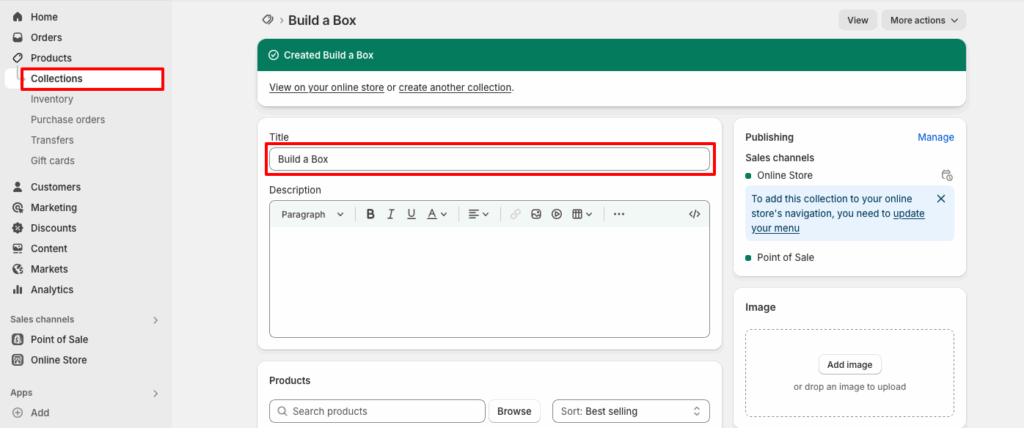
let’s create a product collection
- Go to Shopify Admin → Products → Collections → Create collection
- Name it something like: Build a Box
- Set the handle (very important) to:
build-a-box - Add the products you want your customers to choose from
You can use either a manual collection or automated (e.g., tag all bundle-eligible products with box-item).
Step 2: Create a Custom Page Template
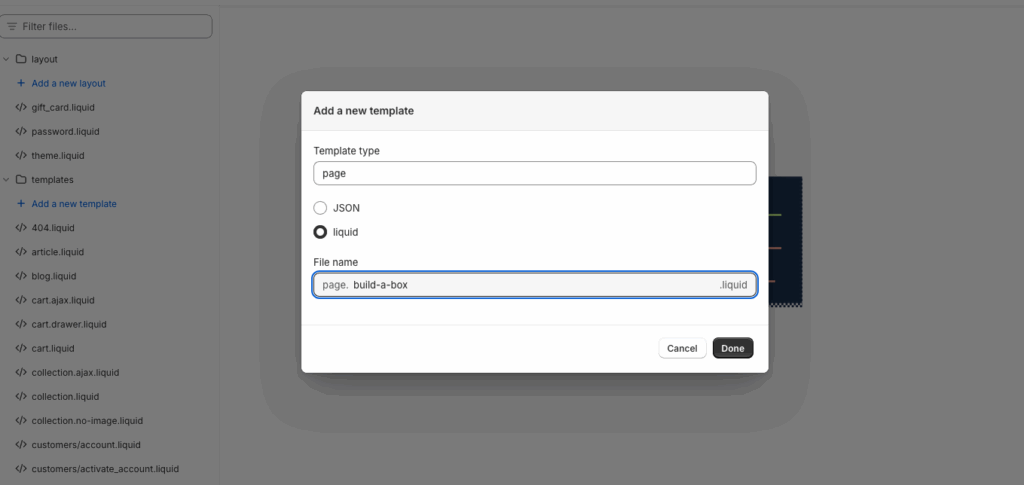
Go to Online Store → Themes → Edit Code
Under Templates, click Add a new template → choose Page, name it:
File: page.build-a-box.liquid
Add the following code
{% layout none %}
{% section 'build-a-box' %}
Now we’ll create that section next.
Step 3: Create the Section File
Under Sections, click Add a new section → name it:
File: build-a-box.liquid
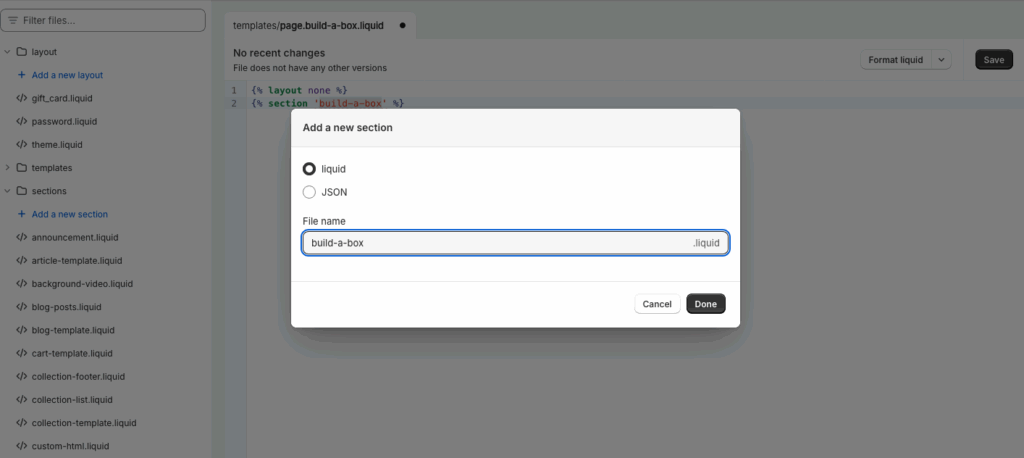
Add the following code
<style>
  .build-box-wrapper {
    max-width: 1200px;
    margin: auto;
    padding: 2rem;
    font-family: 'Helvetica Neue', sans-serif;
  }

  .build-box-wrapper h1 {
    text-align: center;
    margin-bottom: 2rem;
    font-size: 2rem;
    font-weight: bold;
  }

  .grid {
    display: grid;
    grid-template-columns: repeat(auto-fit, minmax(220px, 1fr));
    gap: 20px;
  }

  .product-card {
    background: #fff;
    border: 1px solid #e2e2e2;
    border-radius: 12px;
    box-shadow: 0 2px 10px rgba(0,0,0,0.05);
    padding: 1rem;
    text-align: center;
    transition: box-shadow 0.3s ease;
  }

  .product-card:hover {
    box-shadow: 0 4px 20px rgba(0,0,0,0.1);
  }

  .product-card img {
    width: 100%;
    height: 200px;
    object-fit: cover;
    border-radius: 8px;
    margin-bottom: 1rem;
  }

  .product-card h3 {
    font-size: 1.1rem;
    margin-bottom: 0.5rem;
  }

  .product-card p {
    font-size: 1rem;
    color: #333;
    margin-bottom: 1rem;
  }

  .qty-wrapper {
    display: flex;
    align-items: center;
    justify-content: center;
    gap: 10px;
    margin-top: 10px;
  }

  .qty-wrapper input[type="number"] {
    width: 50px;
    text-align: center;
    border: 1px solid #ccc;
    border-radius: 4px;
    height: 36px;
  }

  .qty-wrapper button {
    background-color: #f2f2f2;
    border: none;
    padding: 0 12px;
    font-size: 18px;
    cursor: pointer;
    border-radius: 4px;
  }

  .summary {
    margin-top: 2rem;
    text-align: center;
    font-size: 1.2rem;
  }

  #add-to-cart-btn {
    background-color: #000;
    color: #fff;
    padding: 12px 30px;
    border: none;
    font-size: 1rem;
    border-radius: 8px;
    margin-top: 1rem;
    cursor: pointer;
    transition: background-color 0.3s ease;
  }

  #add-to-cart-btn:hover {
    background-color: #333;
  }

  input[type="checkbox"] {
    transform: scale(1.2);
    margin-right: 6px;
    cursor: pointer;
  }

  @media screen and (max-width: 600px) {
    .product-card img {
      height: 160px;
    }

    .build-box-wrapper h1 {
      font-size: 1.5rem;
    }

    .summary {
      font-size: 1rem;
    }
  }
</style>
<div class="build-box-wrapper">
  <h1>Build Your Own Box</h1>
  <div id="product-list" class="grid">
    {% assign products = collections['build-a-box'].products %}
    {% for product in products %}
      <div class="product-card" data-id="{{ product.variants.first.id }}" data-price="{{ product.variants.first.price | divided_by: 100 }}">
        <img src="{{ product.featured_image | img_url: 'medium' }}" alt="{{ product.title }}" width="{{ product.featured_image.width }}"
  height="{{ product.featured_image.height }}">
        <h3>{{ product.title }}</h3>
        <p>₹{{ product.variants.first.price | money_without_trailing_zeros }}</p>
        <label>
          <input type="checkbox" class="box-product-checkbox">
          Add to box
        </label>
        <div class="qty-wrapper" style="display:none;">
          <button class="qty-minus">-</button>
          <input type="number" min="1" value="1" class="box-qty">
          <button class="qty-plus">+</button>
        </div>
      </div>
    {% endfor %}
  </div>

  <div class="summary">
    <p>Total Price: ₹<span id="total-price">0</span></p>
    <button id="add-to-cart-btn">Add All to Cart</button>
  </div>
</div>
<script>
  const checkboxes = document.querySelectorAll('.box-product-checkbox');
  const totalPriceElement = document.getElementById('total-price');
  let totalPrice = 0;

  checkboxes.forEach((checkbox) => {
    const card = checkbox.closest('.product-card');
    const price = parseFloat(card.dataset.price);
    const qtyWrapper = card.querySelector('.qty-wrapper');
    const qtyInput = card.querySelector('.box-qty');

    checkbox.addEventListener('change', function () {
      if (this.checked) {
        qtyWrapper.style.display = 'flex';
        totalPrice += price;
      } else {
        totalPrice -= price * parseInt(qtyInput.value);
        qtyWrapper.style.display = 'none';
        qtyInput.value = 1;
      }
      totalPriceElement.textContent = totalPrice.toFixed(2);
    });

    qtyInput.addEventListener('change', function () {
      if (checkbox.checked) {
        const qty = parseInt(this.value);
        let newTotal = 0;
        checkboxes.forEach((cb) => {
          if (cb.checked) {
            const pCard = cb.closest('.product-card');
            const pQty = parseInt(pCard.querySelector('.box-qty').value);
            const pPrice = parseFloat(pCard.dataset.price);
            newTotal += pQty * pPrice;
          }
        });
        totalPrice = newTotal;
        totalPriceElement.textContent = totalPrice.toFixed(2);
      }
    });

    card.querySelector('.qty-plus').addEventListener('click', () => {
      qtyInput.value = parseInt(qtyInput.value) + 1;
      qtyInput.dispatchEvent(new Event('change'));
    });

    card.querySelector('.qty-minus').addEventListener('click', () => {
      if (parseInt(qtyInput.value) > 1) {
        qtyInput.value = parseInt(qtyInput.value) - 1;
        qtyInput.dispatchEvent(new Event('change'));
      }
    });
  });

document.getElementById('add-to-cart-btn').addEventListener('click', () => {
  const itemsToAdd = [];

  checkboxes.forEach((checkbox) => {
    if (checkbox.checked) {
      const card = checkbox.closest('.product-card');
      const variantId = card.dataset.id;
      const quantity = parseInt(card.querySelector('.box-qty').value);

      itemsToAdd.push({ id: parseInt(variantId), quantity: quantity });
    }
  });

  if (itemsToAdd.length === 0) {
    alert("Please select at least one product.");
    return;
  }

  fetch('/cart/add.js', {
    method: 'POST',
    headers: { 'Content-Type': 'application/json' },
    body: JSON.stringify({ items: itemsToAdd })
  })
  .then(res => res.json())
  .then(data => {
    alert("All selected products have been added to your cart!");
    // Optional: window.location.href = '/cart';
  })
  .catch(error => {
    console.error('Error adding to cart:', error);
    alert("There was an error adding products to your cart.");
  });
});

</script>
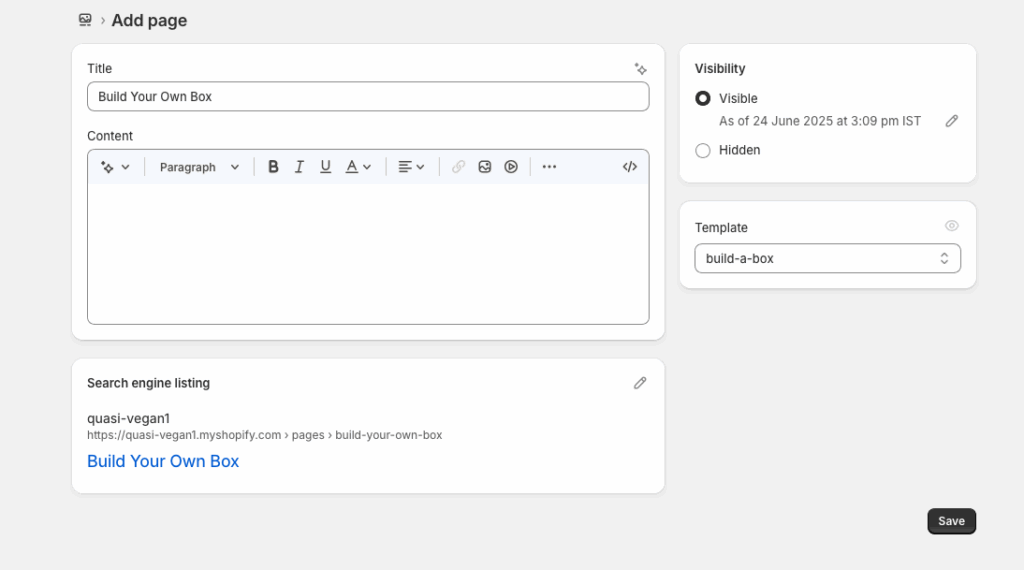
Step 4: Create the Page
- Go to Online Store → Pages → Add Page
- Name it: Build Your Own Box
- On the right side, choose the template:
page.build-a-box - Save
Step 5: Test It
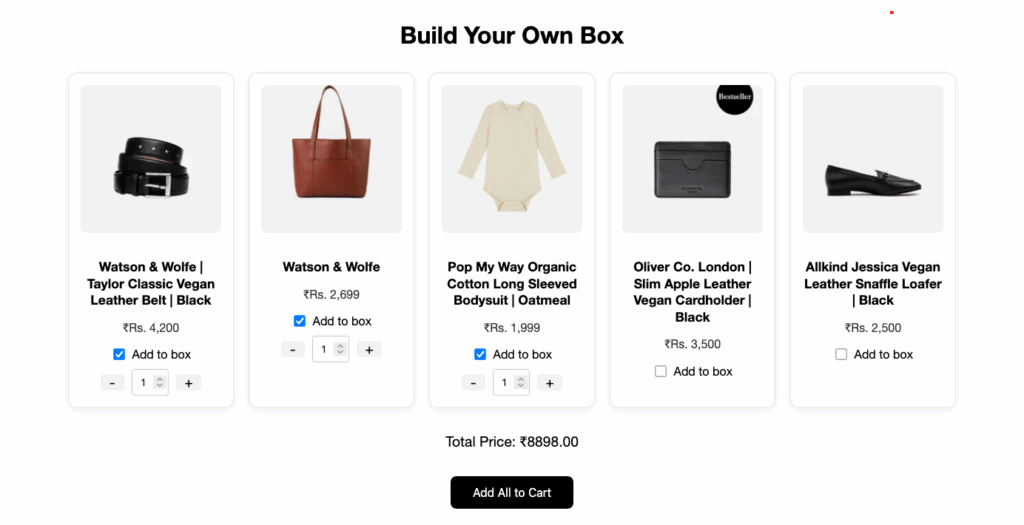
You’ll have a landing page (e.g., /pages/build-a-box) where:
- Products are displayed in cards with checkboxes and quantity buttons.
- The total price updates instantly.
- “Add to Cart” button adds all selected products at once.
Take your online store to the next level with a skilled Shopify expert.
Whether you’re starting from scratch or need improvements on your existing store, I provide custom solutions to optimize performance, enhance user experience, and boost sales. With in-depth knowledge of Shopify, I specialize in creating seamless, responsive, and user-friendly e-commerce websites.
Wrapping Words
Shopify is powerful, but sometimes you have to think outside the box to build what your business needs.
With just a little code, you can implement features usually locked behind paid apps and create unique shopping experiences your customers will love.
If you found this guide helpful and want help building or customizing features like this on your Shopify store, feel free to reach out. I’d love to help you make it happen.